
Place a FlexFormz on any website page
FlexFormz allows you to place a donation form into a page or a post on your WordPress website through the use of a shortcode (a shortcode is a WordPress-specific code that lets you do complex things with very little effort. Shortcodes can embed files or create objects that would normally require lots of complicated code in just one line. Shortcode = shortcut). Shortcodes make it possible for you to place a form anywhere within a page or post so that donors can give via FlexFormz without ever leaving that page!
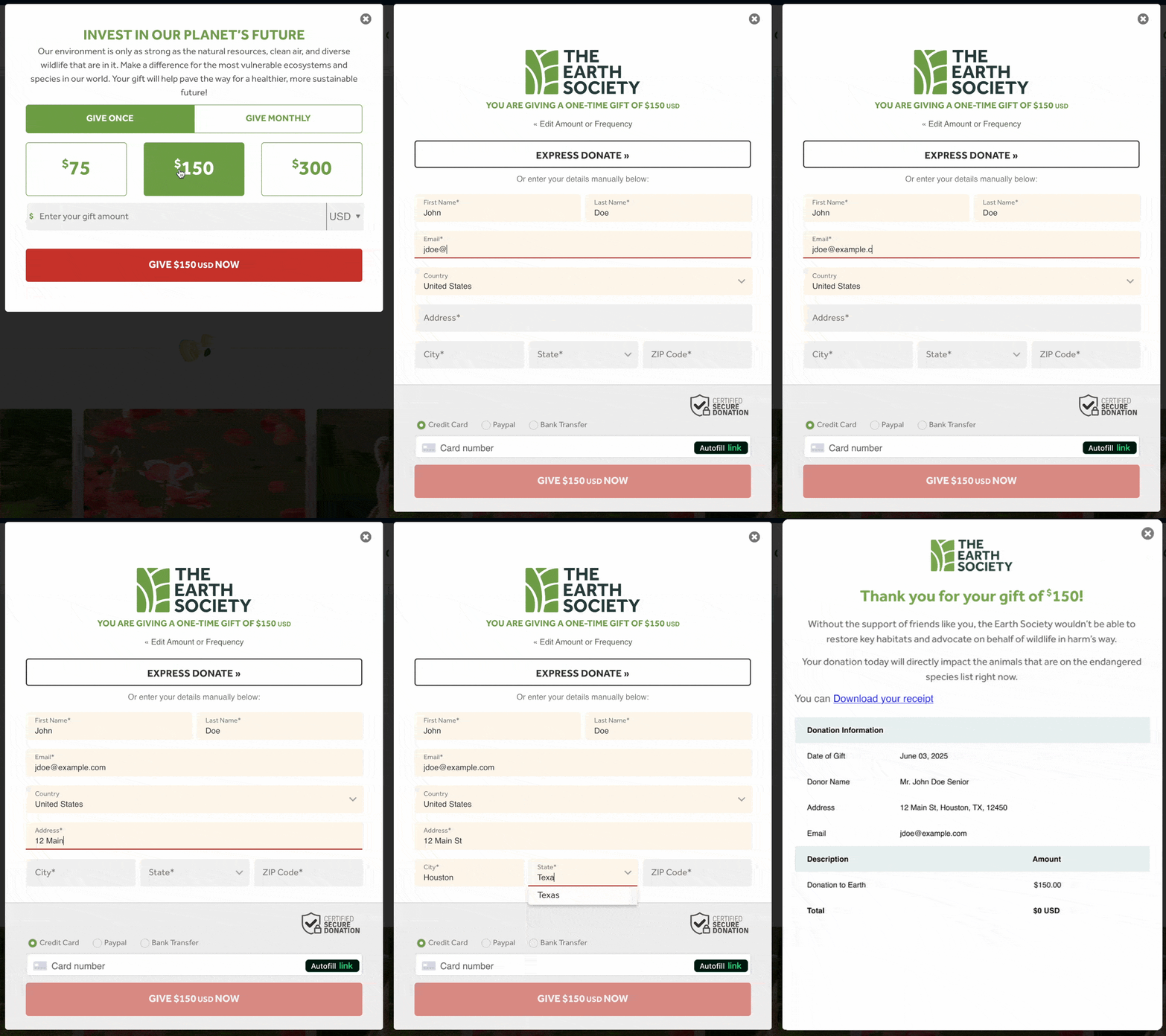
FlexFormz uses JavaScript Lightboxes to display giving information. A “lightbox” is a superimposed layer (box) which appears above a web page with the original page greyed out to display FlexFormz without leaving the original page or post. It is the elegant successor to the outdated (and often blocked) “popup.”
When you edit a page or post, you will see a FlexFormz button located in the Content Editor page view. The FlexFormz button will allow you to embed the form by placing a shortcode onto your page. When donors click/tap on the FlexFormz button, a lightbox (see definition above) with different options will appear.
You may also find a shortcode generator on the left sidebar in your FlexFormz plugin. This will allow you to generate a shortcode that you may copy and paste to place on any page on your website.
Form ID
The first item you must select is the name/ID of a FlexFormz you have created. Please keep in mind that the shortcode will use the amount, frequency configuration, text and colors that you configured when you created that FlexForm.
Form Type
You must SELECT ONE of four ways your FlexFormz will be displayed on a page or post –Lightbox, Anywhere Button, Inline or Sticky Bar. Remember, you can place the same FlexFormz on different pages/posts with different configurations: An Anywhere Button on one page, a Lightbox version on another. There is no limit to the number of pages which may use the same basic FlexFormz.
FlexFormz you may place on any page or post — 4 Types:
1. Lightbox
A Lightbox FlexFormz will automatically display each time the page loads.

2. Anywhere Button
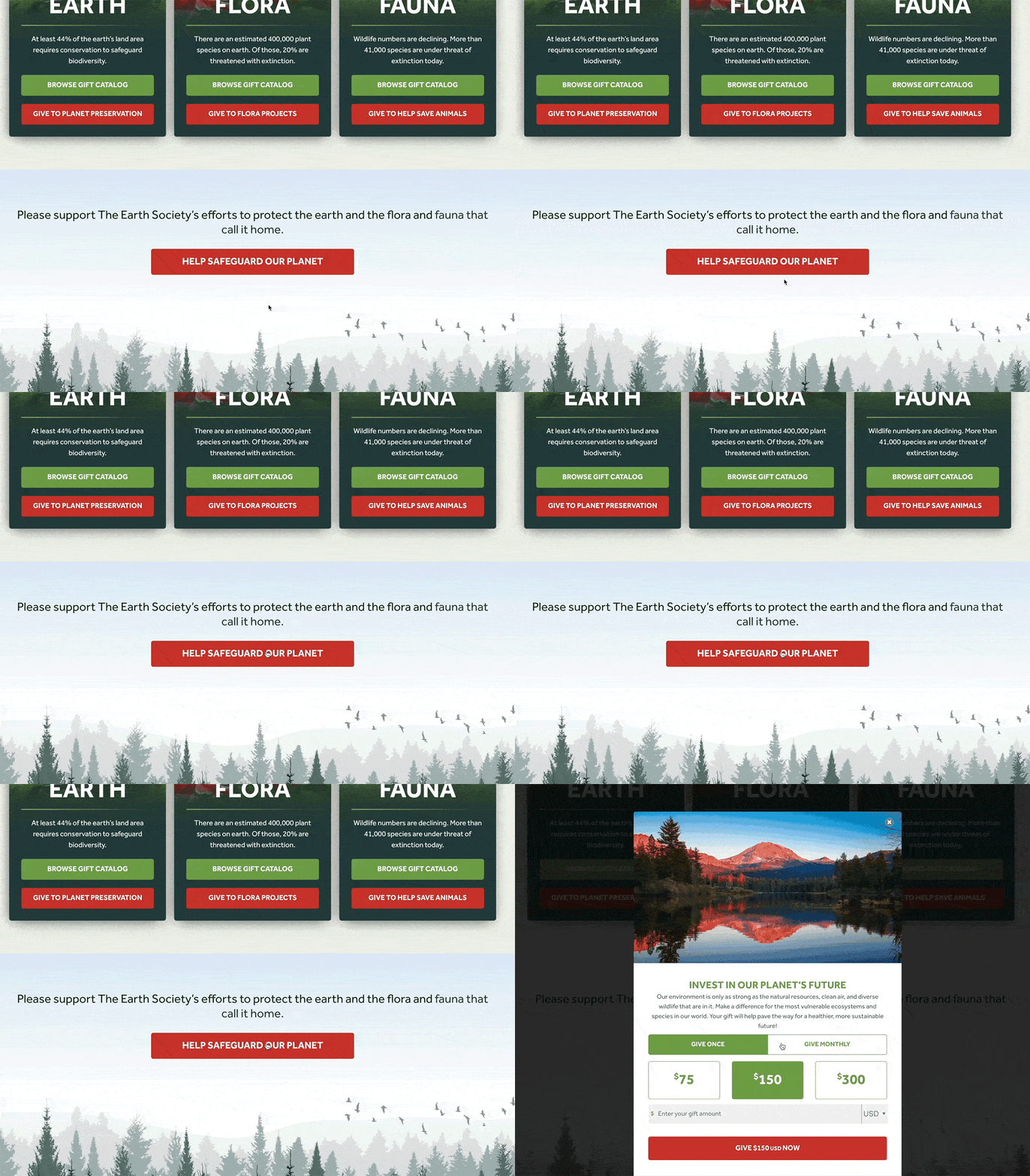
With this Form Type option, a button will be placed into the content (by inserting the shortcode) and when a donor clicks on the button a Lightbox with the form will display. You can edit the text of the button, the style (flat color, gradient color, outline color), and the position (left, center, right). The color of the button is configured on the FlexFormz plugin.
3. Inline Formz
This type of form will display your FlexFormz on the page in the exact place where you added it in the content editor.
4. Sticky Bar
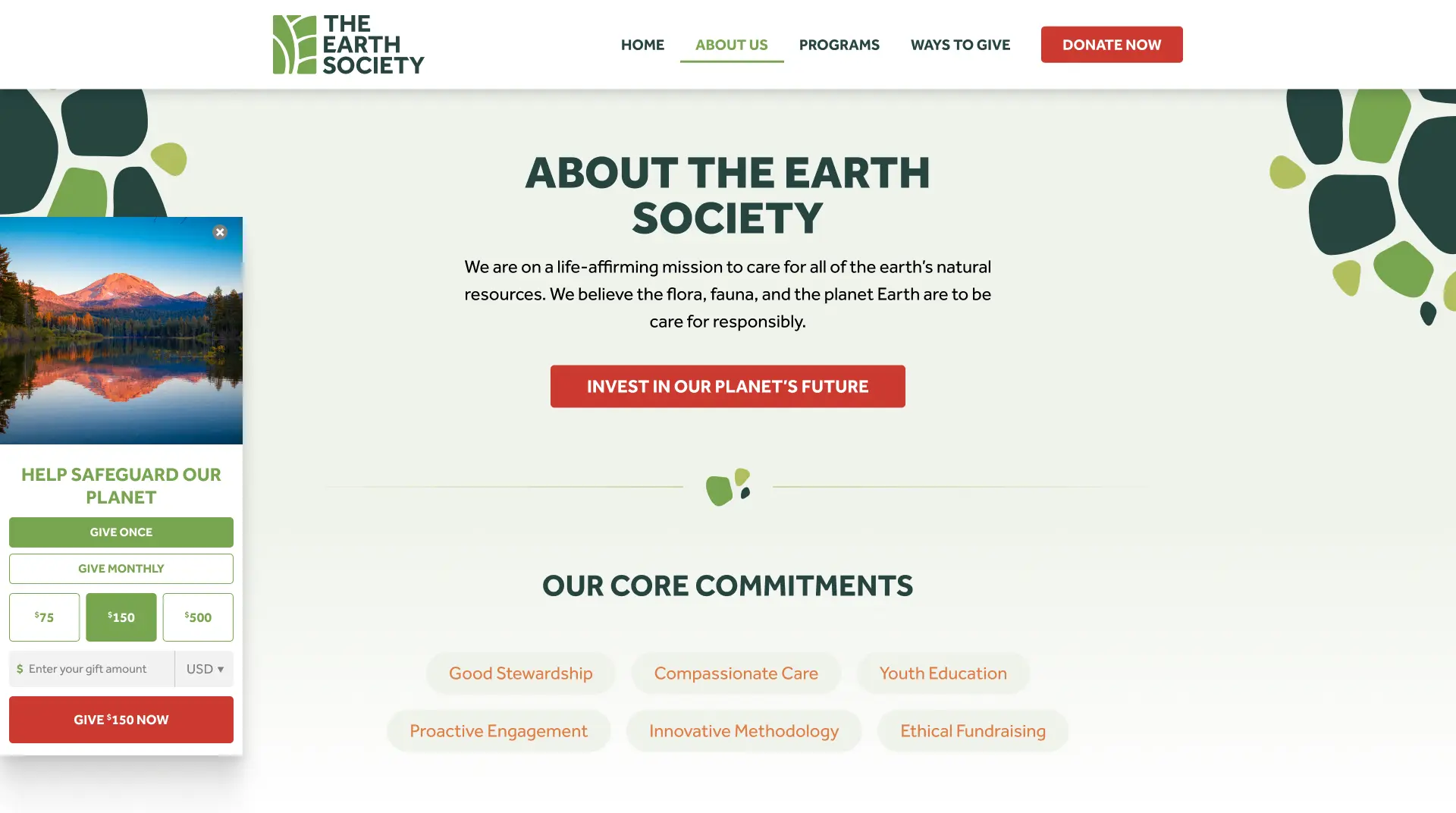
This type of form will display as a small block locked into place (over the webpage content) on one of the edges of the web browser window and will not disappear when the donor scrolls down the page. In other words, it is accessible from anywhere on the page without having to scroll. The Sticky Bar can be placed in four different positions in a page: Left and Right.
1 A “lightbox” is a superimposed layer (box) which appears above a web page with the original page greyed out to display FlexFormz without leaving the original page or post. It is the elegant successor to the outdated (and often blocked) “popup.”
Direct your donors to a landing page or standalone donation form page on your WordPress website with a unique URL
Click/tap on the FlexFormz plugin on the left side. Hover over one of your FlexFormz and click/tap the “View” text link to preview your landing page form. Copy the unique URL in the web browser to include it in campaigns.
FlexFormz as Full, Unique Pages — 2 Types
A. Full-Page FlexFormz
This is often thought of as the “conventional” or legacy donation form. It has a web page unique URL that may be used in email, media campaigns, direct mail — anywhere you want to place a specific link to the donation form.
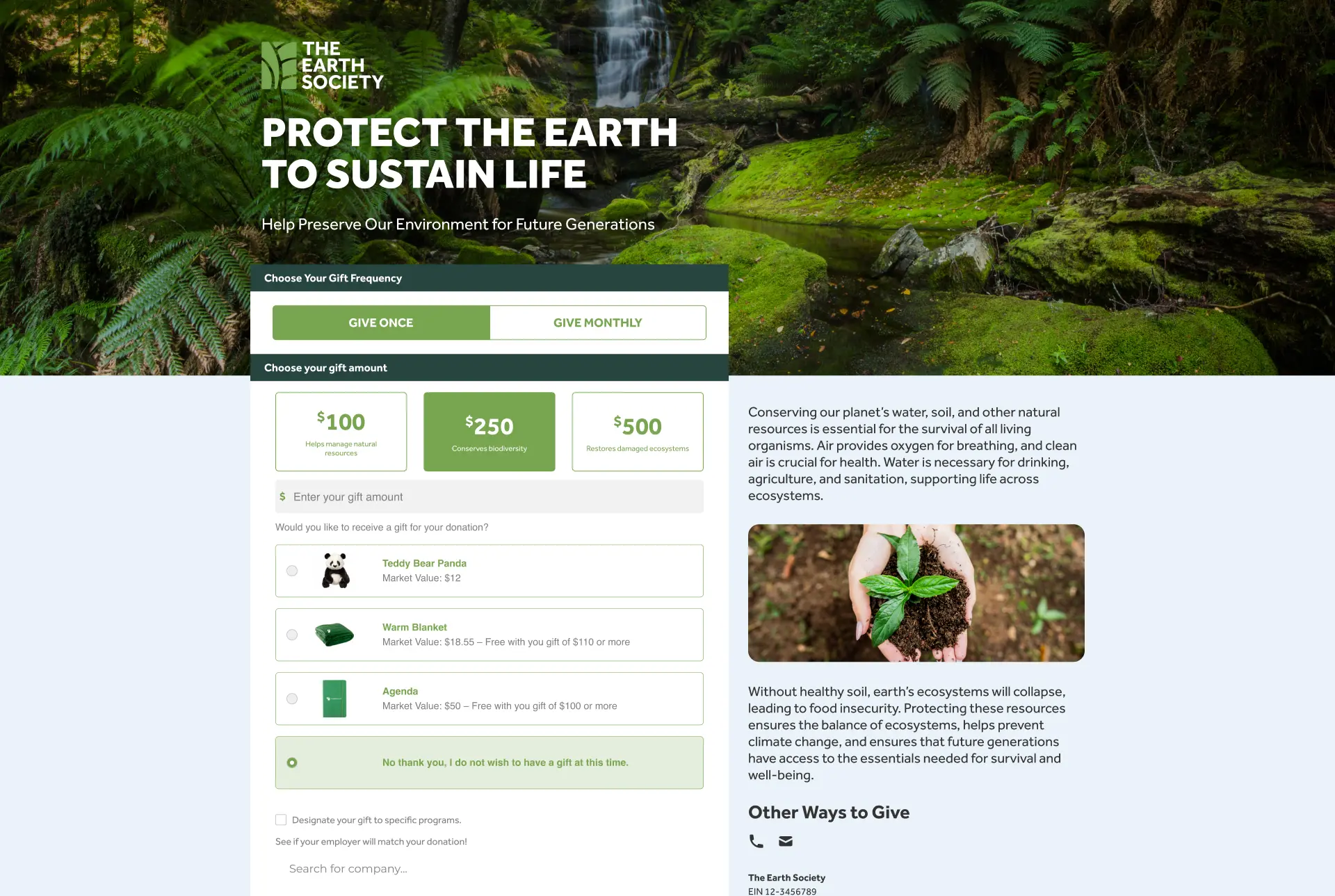
All of the donation information, from gift amount to credit card information appears on screen all the time. It is preloaded on the page. The page header is standard and allows you to choose between a bleed/fade image or a fixed-size rectangular image. The right rail of the page has room for everything from an additional image to a description of the need/offer, membership/certification seals, and information related to your location, 501(c)(3) status, etc.
B. 2-Step FlexFormz
Like the full-page form above, the 2-Step FlexFormz has a unique web page URL that may be used in email, media campaigns, direct mail — anywhere you want to place a specific link to the donation form.
Unlike the 1-step form, the page is left open and fluid for dramatic imagery and headlines/text. When a donor arrives at a 2-step page they will see:
- Full-page image/background
- Headline and brief text explaining the need/offer
- The option to make a single or monthly gift (as defined when you set up this form)
- The choice of gift amount that you set up for this form
Personal and credit card information is collected on the second step, via a Lightbox.
Tracking URL Parameters
You can use the following URL parameters to overwrite some values.
- ffzAmt – is used to pre-select a button amount or to prefill the other amount field, you must pass only numbers.
Ex: https://theearthsociety.org/donation/fauna/?ffzAmt=45
- ffzAmts – is used to change the button amounts; You must pass only numbers.
Ex: https://theearthsociety.org/donation/earth/?ffzAmts=25,50,100
- ffzFreq – is used to pre-select the frequency of the form, the accepted values for this parameter are: onetime and monthly.
Ex: https://theearthsociety.org/donation/fauna/?ffzFreq=monthly
The designation parameters came in pair. You need to add the two parameters to successfully change the value on the form.
- ffzDCode – is used to add the designation code.
- ffzDName – is used to add the designation name
Ex: https://theearthsociety.org/donation/fauna/?ffzDCode=faunaCode&ffzDName=Fauna
SourceCode – is used to change the value of the Source/Motivation Code field. Different abbreviations can be used for this field such as:
- mot, motivation, sc, sourcecode, segmentcode and ffzSourceCode
Examples:
https://theearthsociety.org/donation/fauna/?ffzSourceCode=XTRP-O9867
https://theearthsociety.org/donation/fauna/?mot=XTRP-O9867
https://theearthsociety.org/donation/fauna/?motivation=XTRP-O9867
https://theearthsociety.org/donation/fauna/?sc=XTRP-O9867
Gift Arrays
As of release 2.6.0, you can now overwrite your gift amounts by passing them through the URL parameters. You can choose to add just one of the following parameters or a combination of them.
ffzOTDef – is used to pre-select a button amount in the onetime frequency or to prefill the other amount field. Only number values are allowed.
Ex: https://theearthsociety.org/donation/earth/?ffzOTDef=50
ffzMDef – is used to pre-select a button amount in the monthly frequency or to prefill the other amount field. Only number values are allowed.
Ex: https://theearthsociety.org/donation/earth/?ffzMDef=50
ffzOTAmts – is used to set the button amounts for the onetime frequency, overwriting the existing ones. Only number values are allowed, separated by commas.
Ex: https://theearthsociety.org/donation/earth/?ffzOTAmts=25,50,100
If there is no default amount, the second amount will be set as default.
ffzMAmts –is used to set the button amounts for the monthly frequency, overwriting the existing ones. Only number values are allowed, separated by commas.
Ex: https://theearthsociety.org/donation/earth/?ffzMAmts=25,50,100
If there is no default amount, the second amount will be set as default.
Form Not Loading
FlexFormz relies on the WP REST API to work so if your forms aren’t loading it might be that your site is blocking the Rest API for non-logged users.
We understand the reasons to block most of the REST API endpoints for security reasons but, we would like to suggest you install the plugin Disable REST API:
https://wordpress.org/plugins/disable-json-api/#description
This plugin will allow you to enable certain endpoints. Once you have installed the plugin, go to the settings and enable only the FlexFormz Endpoints. See the image below:
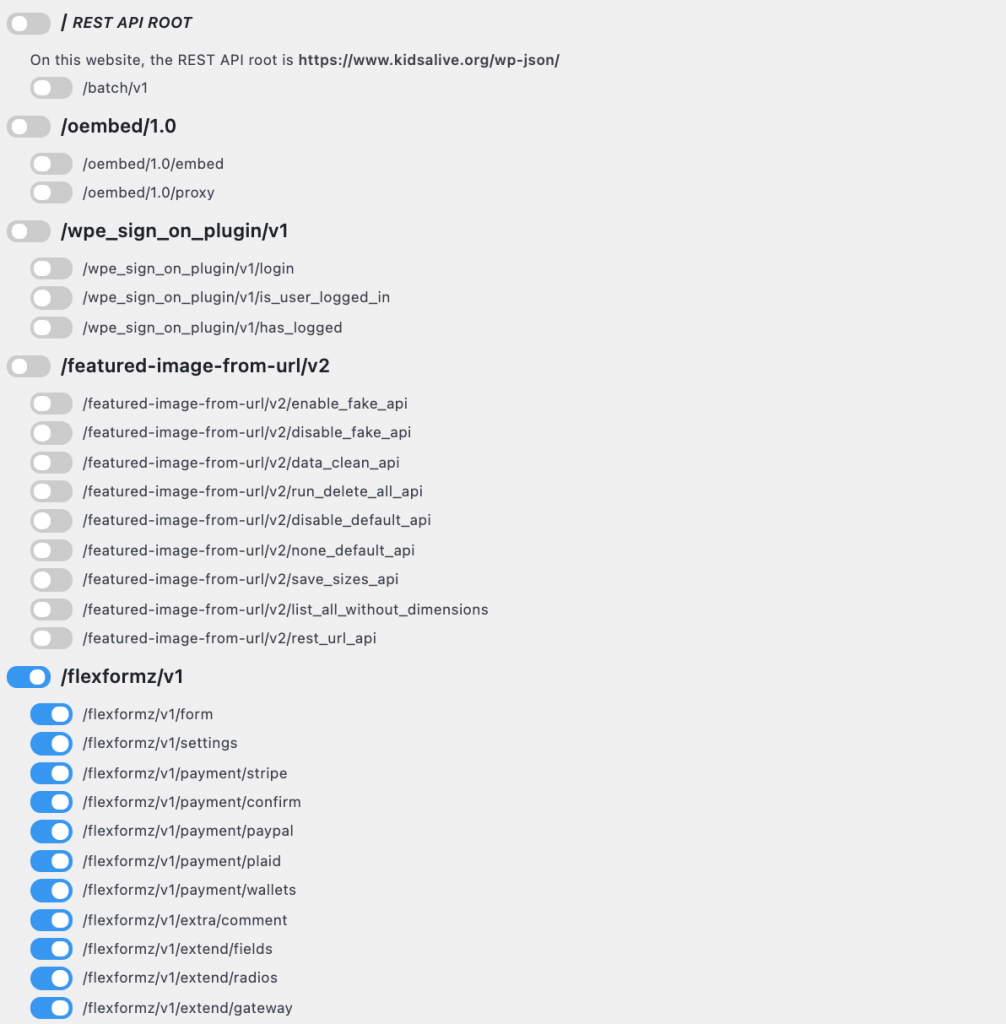
We recommend that each update of FlexFormz review the endpoints since we might add some new features with new endpoints.
Cookie Not Valid
FlexFormz uses the WP cookie nonce to validate the request coming from the forms if you are getting an error similar to Cookie not valid it might be related to cache issues.
There are a variety of Cache plugins for WordPress and the settings would change to one another, but you need to do the following:
1.- Add the donation URLs to the cache whitelist
Most of the plugins allow you to whitelist some pages that you do not need to be cached. To avoid the FlexFormz being cached you need to add the following rule:
/donation/*
2.- Add the REST API URLs to the cache whitelist
This would depend on your plugin.
Some of the cache plugins have a button to prevent the REST API URLs to be cached but if your plugin does not offer that option you can add the following rule to the whitelist
/wp-json/flexformz/*
If you are on WPEngine please contact support and ask them to add the following rules to the cache whitelist:
/donation/*
/wp-json/flexformz/*
If you have another type of issue please contact us at support@flexfromz.com and we will help you to solve your problem.